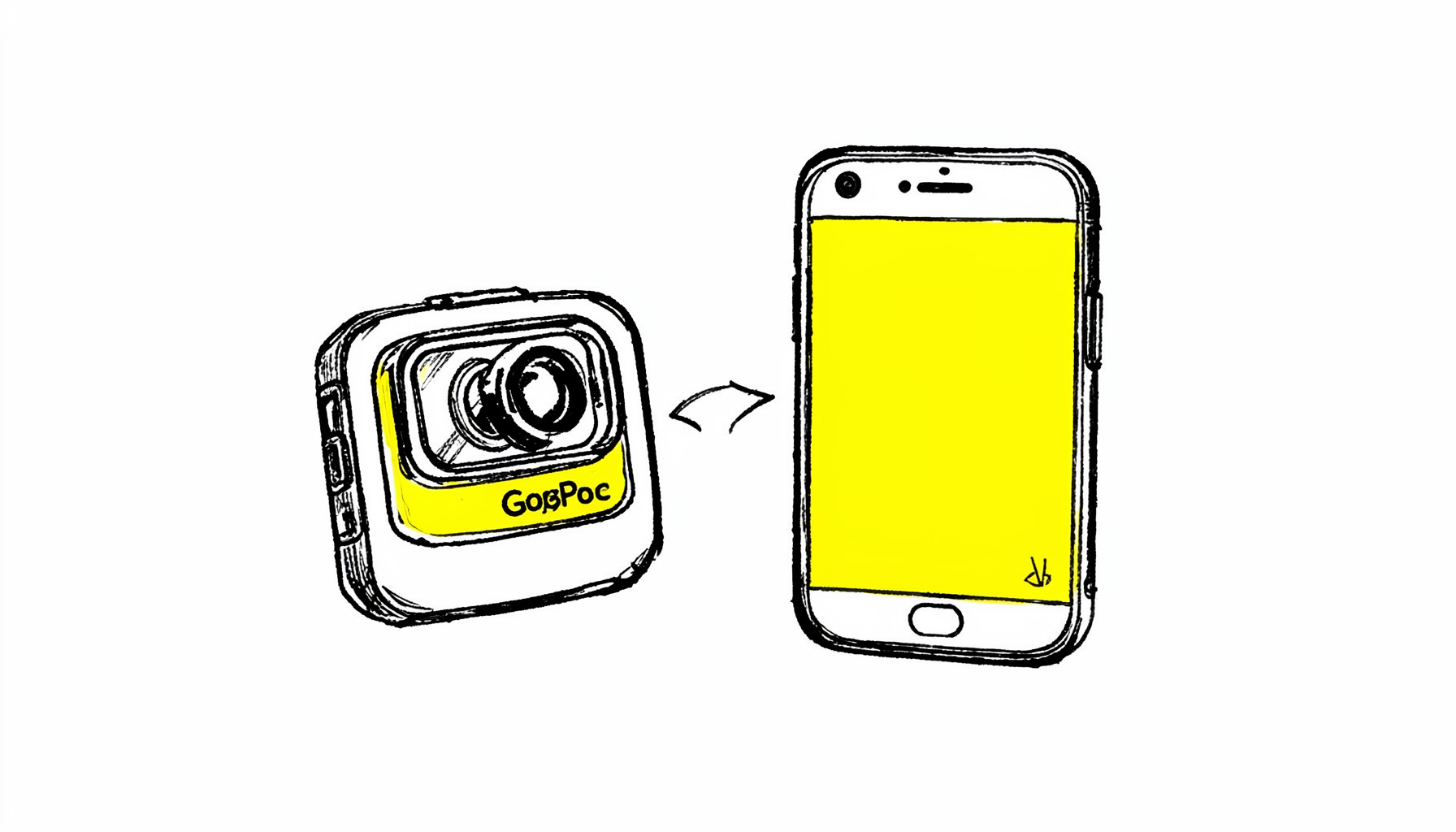
Play GoPro 4K Video on iPhone 7 (Plus)
Transfer and play GoPro Hero 4K video on iPhone 7 or iPhone 7 Plus. Covers compression from 4K to 1080p for smooth playback and adjusting output aspect ratios.

Step-by-step instructions for video conversion, device compatibility, and media management — helping you get the most from your digital entertainment.
Transfer and play GoPro Hero 4K video on iPhone 7 or iPhone 7 Plus. Covers compression from 4K to 1080p for smooth playback and adjusting output aspect ratios.
Prepare HD MKV videos for playback on iPhone 6 Plus by converting them to compatible formats. Includes steps for loading files, choosing output settings, and starting conversion.
Our guides cover a range of practical media tasks. Explore the topics below to find the right tutorial for your workflow.
Many tutorials reference Pavtube HD Video Converter and Pavtube Video Converter Ultimate for handling SD, HD, and 4K footage across formats. Mac users can also find steps tailored to Pavtube Video Converter for Mac and Pavtube iMixMXF for professional MXF multi-track workflows. Visit the Store to browse the full software lineup, or check the Downloads page for trial versions.
For those working with high-definition media files, compatibility across devices often presents a challenge. Modern camcorders and action cameras frequently record in advanced formats that standard media players and editing software cannot natively handle. Converting these files to a more universally accepted format ensures smooth playback on smartphones, tablets, and smart TVs. Whether you are working with footage from a recent trip or preparing clips for a professional project, having the right conversion tools at your disposal simplifies the process. The goal is to preserve the original quality while adapting the file to meet the specific requirements of your target device or editing application.
Video editing workflows often demand flexibility in handling various codecs and container formats. Professionals in content creation frequently encounter files that need to be transcoded before they can be edited in popular nonlinear editing systems. Converting footage to an intermediate codec such as ProRes or DNxHD can significantly improve editing performance, especially when working with highly compressed camera originals. This process involves re-encoding the video data into a format that is less demanding on your computer's processor, allowing for smoother scrubbing, real-time playback, and faster rendering. Understanding the differences between codecs helps in choosing the right output format for your specific editing environment.
Archiving and preserving personal video collections requires careful consideration of file formats and storage solutions. Over time, the media landscape evolves, and older formats may become obsolete or unsupported by modern software. Converting your video library to widely supported, high-quality formats ensures that your memories remain accessible for years to come. It is also important to consider the balance between file size and video quality when selecting an output format. Lossless or near-lossless compression can maintain the integrity of the original footage while reducing storage requirements, making it easier to manage large collections without sacrificing visual fidelity.
Streaming and sharing videos online often involves optimizing files for different platforms and bandwidth conditions. Each social media platform and video hosting service has its own recommended specifications for uploads, including resolution, bitrate, and codec support. Preparing your videos accordingly ensures that they appear in the best possible quality and load quickly for viewers. This may involve adjusting the aspect ratio, compressing the file size, or converting to a specific format. Additionally, creating multiple versions of the same video at different resolutions allows you to cater to viewers with varying internet speeds, providing a smooth playback experience regardless of their connection.
Audio tracks within video files can also require attention during the conversion process. Many video containers support multiple audio streams, allowing for commentary tracks, alternate language dubs, or descriptive audio. When converting a video file, you may need to select which audio tracks to include, adjust the audio codec, or synchronize the audio with the video stream. Common adjustments include converting surround sound to stereo for devices that do not support multi-channel audio, or normalizing volume levels across different clips. Ensuring that the audio component of your video is properly handled during conversion is essential for creating a polished final product that engages viewers fully.