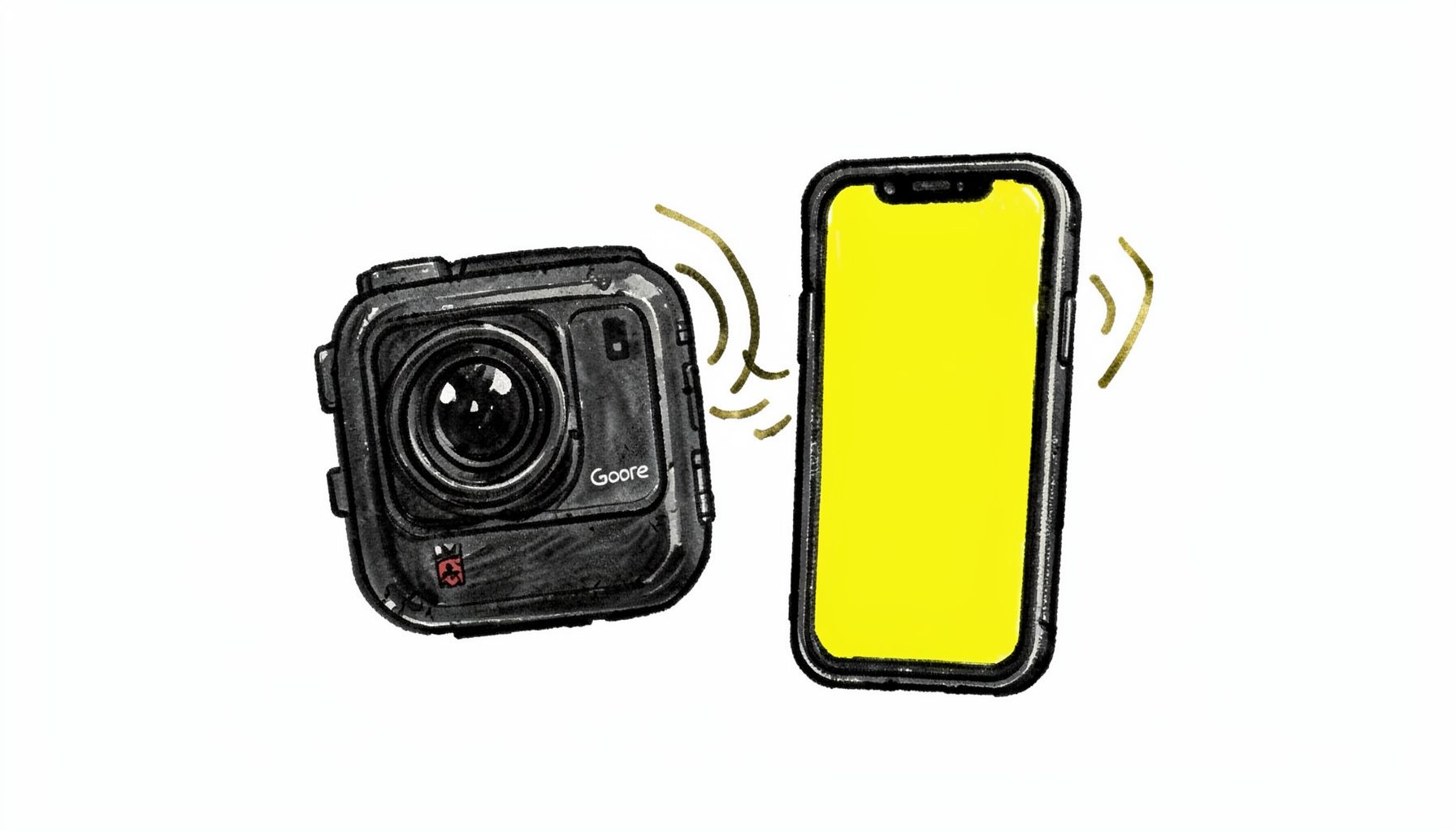
Play GoPro 4K Video on iPhone 7 (Plus)
GoPro Hero cameras capture stunning 4K footage, but getting that high-resolution video onto an iPhone 7 or iPhone 7 Plus for smooth playback isn't always straightforward. This guide walks you through transferring 4K video from your GoPro to your iPhone and, when needed, compressing it to 1080p for better performance.
Transfer 4K Video from GoPro Camera to iPhone 7 (Plus)
To move 4K footage from your GoPro to your iPhone, you can use GoPro's official Quik mobile app, available from GoPro's official web page. The app connects wirelessly to your GoPro camera and lets you import clips directly to your iPhone's photo library.
Other ways to import content to Quik for mobile from your iPhone 6S (Plus):
- Use a Lightning-to-SD card reader to pull files directly from the GoPro's microSD card.
- Sync media files from your iTunes library to your iPhone — see this guide on syncing media for step-by-step instructions.
Convert and Compress GoPro 4K to 1080p for iPhone 7 (Plus) Playback
While the iPhone 7 and 7 Plus can handle 4K video, playback may stutter or consume significant storage. Compressing 4K footage to 1080p delivers smoother playback and smaller file sizes without a dramatic loss in visible quality. For a deeper look at the benefits of downscaling, check out this resource on compressing 4K to 1080p.
Adjust Output Video Aspect Ratio
Before converting, make sure the output aspect ratio matches your iPhone's display. GoPro footage often uses a 16:9 or 4:3 ratio. You can adjust this in your conversion software — see this guide on changing output video aspect ratio for detailed instructions.
How to Convert and Compress GoPro Hero 4K to 1080p for iPhone 7 (Plus) Playing?
Using Pavtube HD Video Converter (available for both Windows and Mac), you can transcode GoPro 4K footage into iPhone-optimized 1080p files in a few steps.
Step 1: Load GoPro 4K Video
Launch Pavtube HD Video Converter and drag your GoPro 4K clips into the program window. The software supports a wide range of GoPro file formats and resolutions.
Step 2: Choose Output Format
Select an iPhone-friendly preset from the output format list — typically H.264 MP4 at 1080p resolution. This ensures broad compatibility with the iPhone 7 and iPhone 7 Plus.
Step 3: Start Conversion
Click the convert button to begin processing. Once complete, transfer the resulting files to your iPhone via iTunes sync or AirDrop for smooth, stutter-free playback.
For users working with high-resolution video footage from modern action cameras, ensuring smooth playback across devices often requires thoughtful file management. The native 4K files captured by these compact cameras can place significant demands on mobile hardware, particularly when transferring between different ecosystems. A practical approach involves using wireless transfer apps to move footage from the camera to a smartphone, then optionally converting the video to a more playback-friendly resolution like 1080p. This compression step helps maintain fluid performance during editing or casual viewing on the device. Understanding these basic workflow adjustments allows content creators to preserve their high-quality source material while still enjoying seamless access across their personal entertainment devices.